ClickCease
Composition

Online Banking for Business

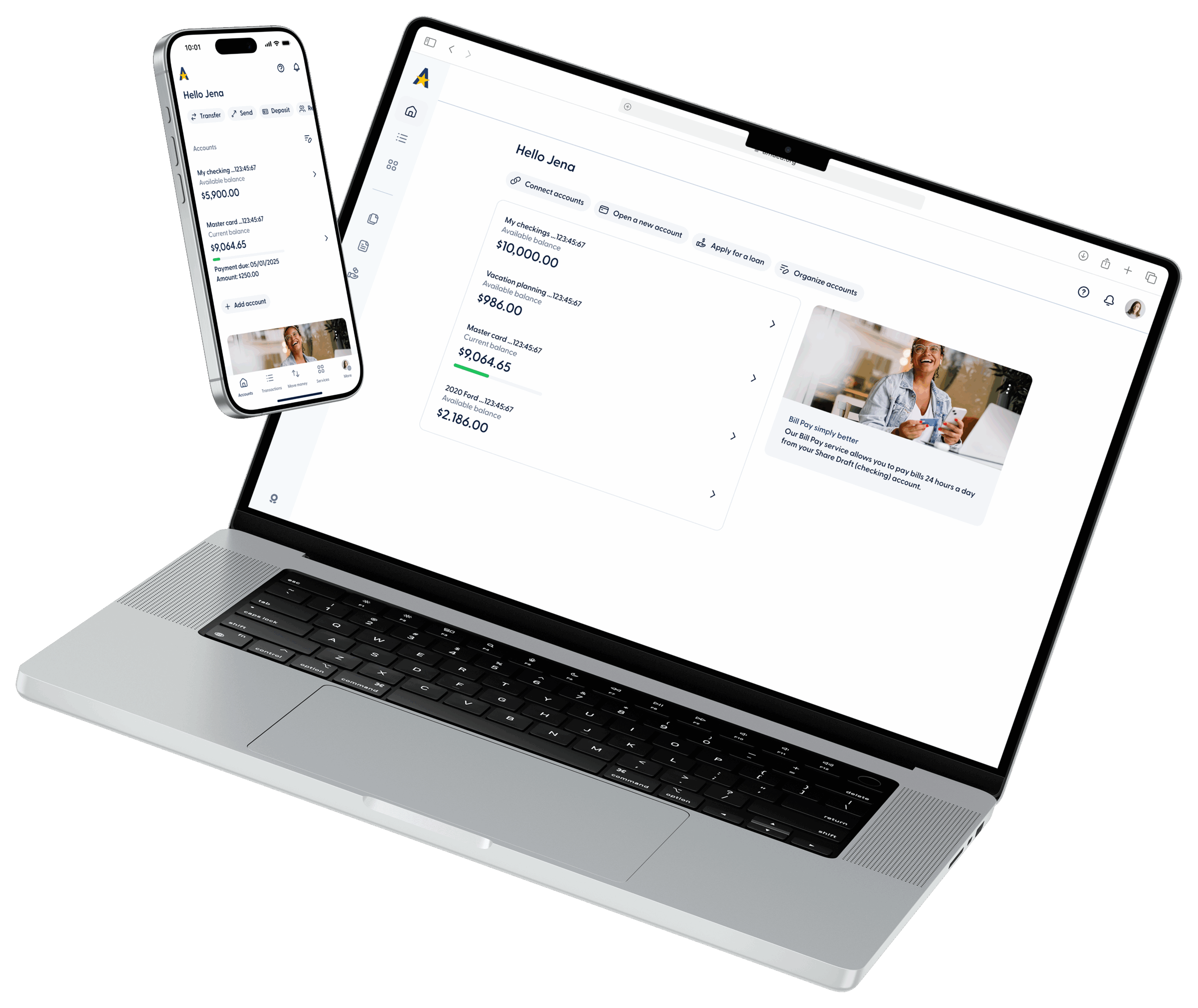
Enjoy our modern platform, designed to be constantly evolving based on your feedback—while adding new features and services.

Please note: This page is intended for business accounts.

Sign inApp StoreGoogle Play

Take a peek

New & Improved Online Banking Experience (8)

All the things...

A list of everything on this page. Select one to go directly to that section or just scroll down on your own.

What business users should know

  • Simple user interface that is clean, modern, and full of features
  • Built specifically for our credit union members based on your feedback
  • Actively developing new features, services, and improvements to add
  • Ability to send ACH payments and originate wires online
  • Single sign-on convenience for services such as Bill Pay, VISA Rewards, and more
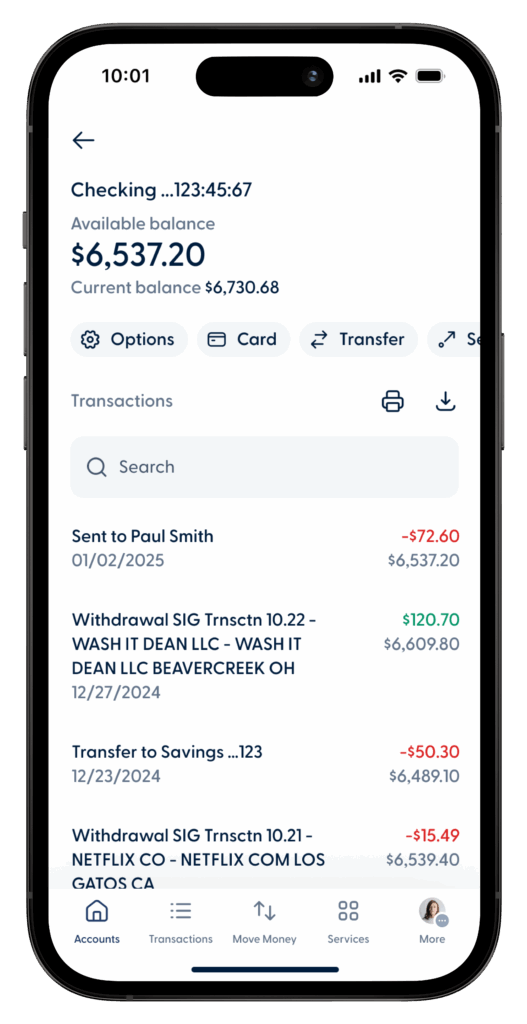
  • Enriched transaction details that includes color coding and company logos
  • Instant external account verification through Finicity
  • Embedded card controls to freeze/unfreeze, set travel notifications or alerts
  • Online/Desktop Users:
  1. Click on “ONLINE BANKING” in the top right of your screen
  • Mobile App Users:
  1. For iPhone users, please download the American United app from the App Store.
  2. For Android users, please download the American United app from Google Play.

Onboarding Instructions

Please contact us to set up online access for your business account(s)

Contact Us

Online Banking Overview

An enhanced online banking experience with your business in mind

Account Management

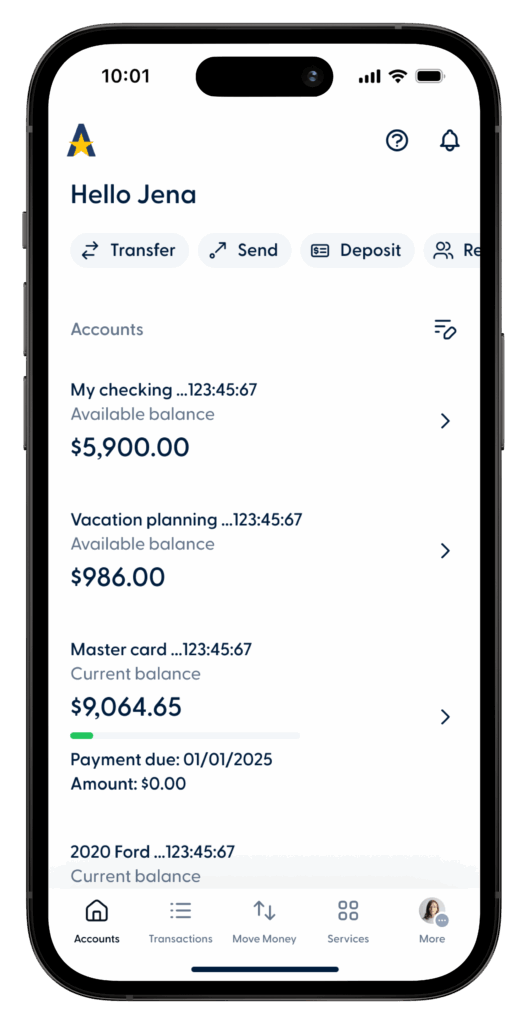
  • Check balances & transactions
  • Transfer funds between accounts
  • Team members & permissions
  • View eStatements & documents

Payments & Transfers

  • Internal transfers, ACH, or wires
  • Make loan or card payments
  • Schedule & pay bills
  • Add External accounts

Security & Alerts

  • Multi-factor authentication
  • Real-time transaction alerts
  • Instantly lock/unlock cards
  • Customize notifications

Tools & Services

  • Apply for loans or new accounts
  • Direct messaging for support
  • Add business subsidiaries 
  • Create/upload CSV files

How-to Videos

Untitled design 2025 05 15T113300.297

Features & Services

  • Please note: Starting August 1st we will be charging a monthly fee of $2 for printed statements and are encouraging all members to enroll in E-statements before then to avoid any fees. It’s easy to enroll for E-statements in online banking. Just go to your “More” page in the mobile app or click on your profile image in the top right if you are using a computer, then select “Statements” and turn them on. If you have access to joint accounts, you can toggle between them by selecting the “Account #####”. From there you can enable or check to see if they’re enabled already. 
  1. Same exact appearance as printed statements
  2. 24/7 online access to view and download up to 10 years of history
  3. Less waste, more secure, and no more shredding or piles of printed statements
  4. Help prevent identity theft by removing your personal info from travelling by mail
  5. Eliminate the cost of printed statements so that we can pass the savings on to you
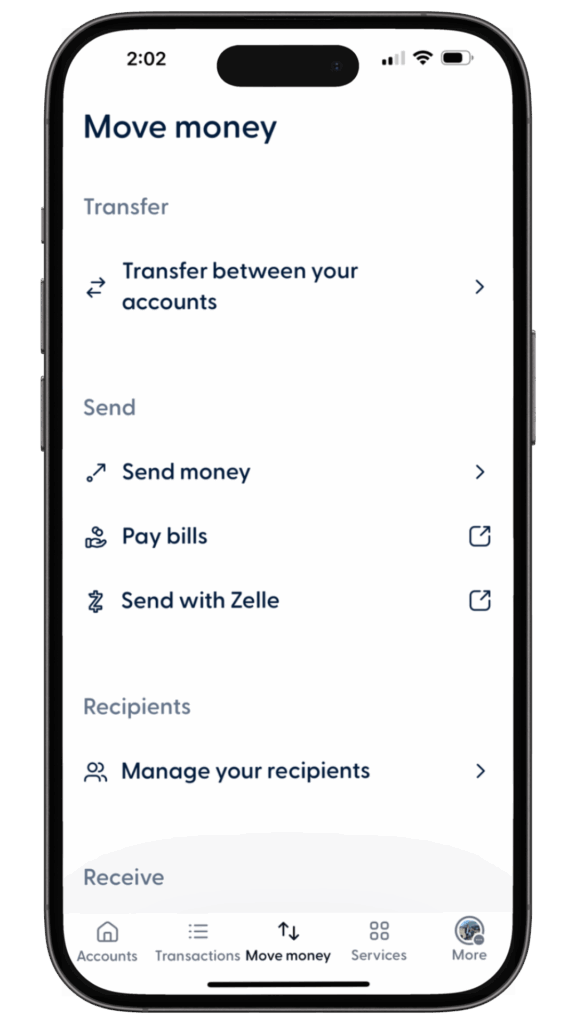
  • Business members have the added options to setup ACH, originate wires, and add them as recipients for recurring transactions on their “Move Money” page in online banking. Personal banking members only have the ability to make internal transfers to other members. To access this, business members enrolled in online banking will go to the “Move Money” page. From there you can choose from the following options.
  1. Send money
  2. Send to multiple
  3. Payroll payment
  4. Collect from multiple
  • Please reference our helpful “How-to Videos” for various AHC related topics including how to make ACH batch payments, payroll, collections from multiple, and how to create and upload a CSV file. 
  • External accounts are the accounts you own at another financial institution. You would add them to be able to transfer funds to or from them.
  • To add an external account, select “Transfer” from the “Accounts” page or “Transfer between your accounts” on the “Move Money” page, then “Select account” and finally “Link an external account” at the bottom of the page. There are now two ways to add external accounts.
  1. Link automatically using Finicity, a Mastercard company, to link your accounts. They will securely access, process and share the requested financial data with your permission. You’ll be able to search for your outside financial institution. If your aren’t able to find your bank, we still provide the option to link manually.
  2. Link manually by inputting your account details to initiate a validation process with micro deposits. This option might take up to 3 days to complete and requires you to enter the two micro deposit amounts to complete the validation. 
  • Embedded card controls to freeze/unfreeze, set travel notifications, or alerts. To access them, go to the “Accounts” page, then select your checking account (also known as “share draft”) with a debit card or your credit card account. From there, select “Freeze” or “Travel Notifications”.
  1. Choosing to “freeze” your card still allows recurring charges to process, such as already approved monthly charges
  • There are a number of notification options you can choose from and customize to meet your needs. You can turn them on/off and decide if you want them via email, push to your device, or text message. To access them, go to “More” (mobile app) or “Settings” (desktop), then select “Notifications”. 
  1. Account alerts include available balance, withdrawals, interest earned (YTD), transaction keyword match, checks cleared, and more
  2. Security alerts are related to warnings, account blocks, profile changes, and your ACH transactions (if available)
  3. Financial Activity notifications when a transaction has failed or been cancelled
  4. Credit Union notifications for the latest news, updates, or closures
  5. Marketing messages from us about promotions, giveaways, and ways to engage your community
  6. Message notifications when you get a new message in your online banking
  • Please note: Mobile check deposit uses the camera on your smartphone and can only be done using our mobile banking app. You can download our app from the App Store or Google Play. To access mobile check deposit, select “Deposit” on the “Accounts” page. You can also select “Deposit a check” on the “Move Money” page.
  1. Use your mobile device camera to deposit checks from anywhere
  2. Must write “For AMUCU Mobile Deposit Only” on the back of the check
  3. Mobile deposits after 2 pm MST will process the following business day
  4. Deposit checks by choosing the account, entering the amount, and submitting photos of the front and back 
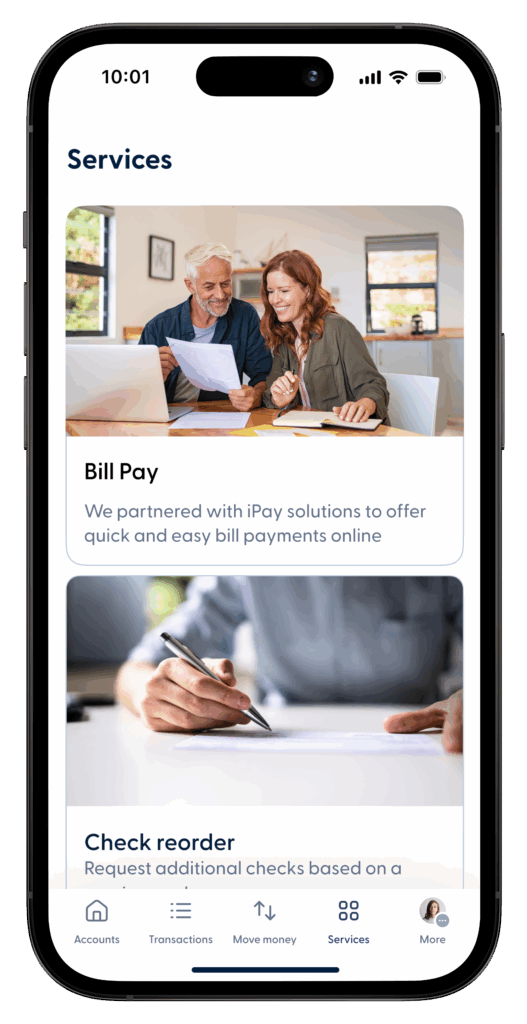
  • Bill Pay is a safe and secure tool to pay your bills, especially if you want to manage all of them from one place. You can make one-time, recurring, and scheduled payments to make sure you stay on top of everything. To access Bill Pay, go to the “Move Money” page, then select “Pay Bills”. You can also find it on the “Services” page.
  1. Manage and pay bills conveniently online from anywhere
  2. Set-up automatic payments to avoid late fees
  3. Easily pay all of your bills (utility, gas, mortgage, medical, credit cards, etc.)
  4. Easy to get started, just enroll in bill pay, add a payee, and schedule a payment
  5. Ability to search full payee directory (credit cards, utilities, etc.) or add new payees
  6. Receive email and text notifications
  7. Single sign-on (SSO) provides instant and secure access

Need additional support?

We are here to help you

Contact Us

Frequently Asked Questions

  • How do I sign out?
  1. To sign out, click on on the bubble with your initials or profile image inside it, then select “Sign Out”.
  • What is my “@You”
  1. Your username will be referred to as your @You. It cannot contain your account number.
  • Is it required to use the “@” symbol when logging in?
  1. No, you can simply use your username, email address or phone number to access your online profile.
  • I am asked to get a verification code more than normal, why is this?
  1. If “remember me” from the login screen is selected during a login session, a verification code will be skipped for future login attempts. However, for security purposes, every 30 days you will be prompted with a verification code.
  • What is the difference between “send money” and a “transfer”?
  1. The new “send” feature is the channel used for person-to-person transactions and “transfer” is the channel used for money movement between accounts you own. Both channels allow transactions internally and externally. When selecting “send,” you will have the option to send money to an existing member of this Credit Union, the same as the current member-to-member process, or you can send money to an external recipient, just like Venmo. Once you have created a recipient, both internally and externally, it is saved in your “recipients” for future transactions.  When selecting “transfer” you will have the option to set up an external account to move money between your account with this Credit Union and an account you have at another financial institution.  Once the external account is verified, it is saved in your transfer screen for future transactions.
  • Why can’t I group my accounts on my home page?
  1. For the current release of the new digital banking experience, grouping accounts isn’t available. In a future release, additional customization will be implemented, and you will have full control to arrange the accounts on your home page however you would like.
  • Why can I scroll on my laptop with the use of a mouse, but when I scroll with the mousepad nothing happens?
  1. To scroll without a mouse on a laptop device, always use two fingers.
  • Why is the app on my iPad so small?
  1. For the best online banking experience when using a tablet or iPad, it is recommended to use the responsive web version.